No offline records saved
Records will appear here when saved offline
Records are automatically synced when internet connection is restored.
Please wait while we upload the child information to the database...
Uploading data and attachments...
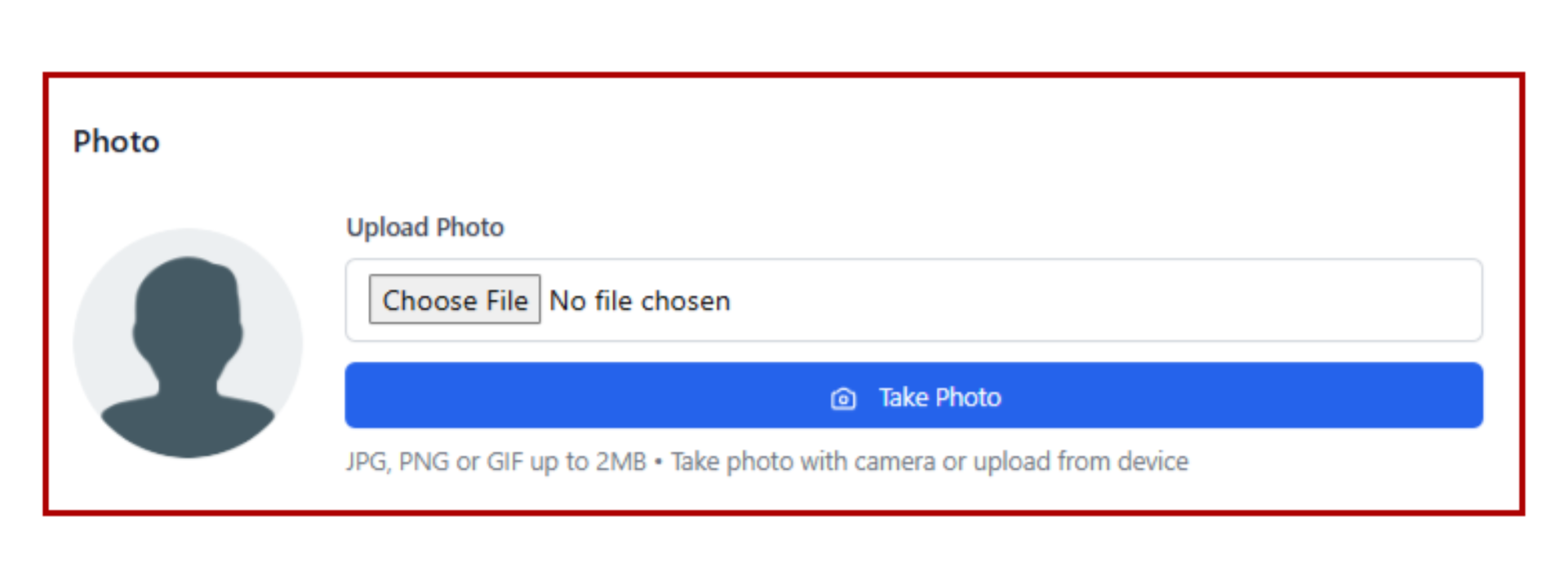
Start by uploading a profile picture for the child. You can either select an image from your device or use the camera to take a new photo. This helps with easy identification of the child in the system.
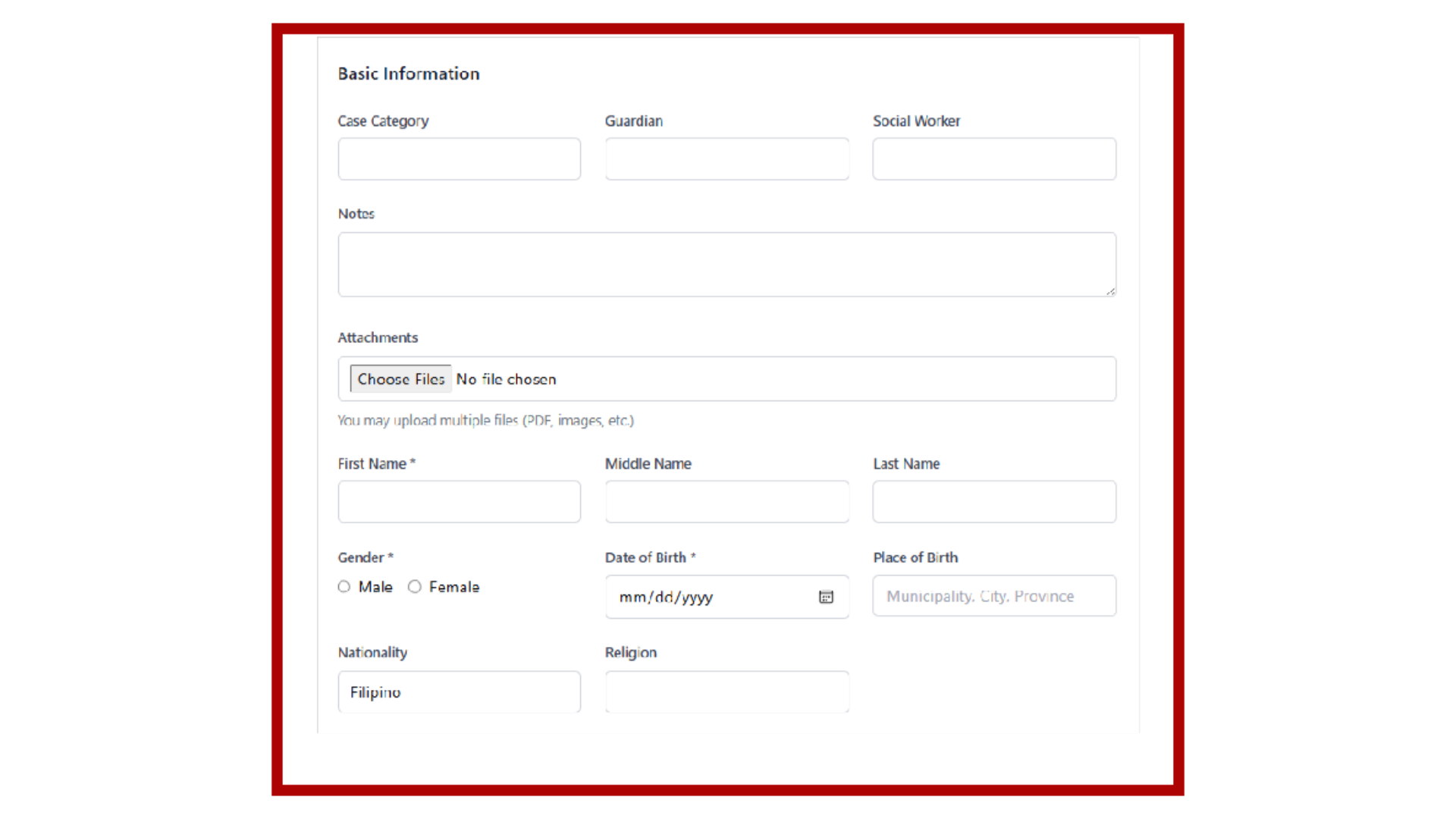
Enter the child's basic personal information including first name, middle name, last name, gender, date of birth, place of birth, nationality, and religion. Required fields are marked with an asterisk (*).
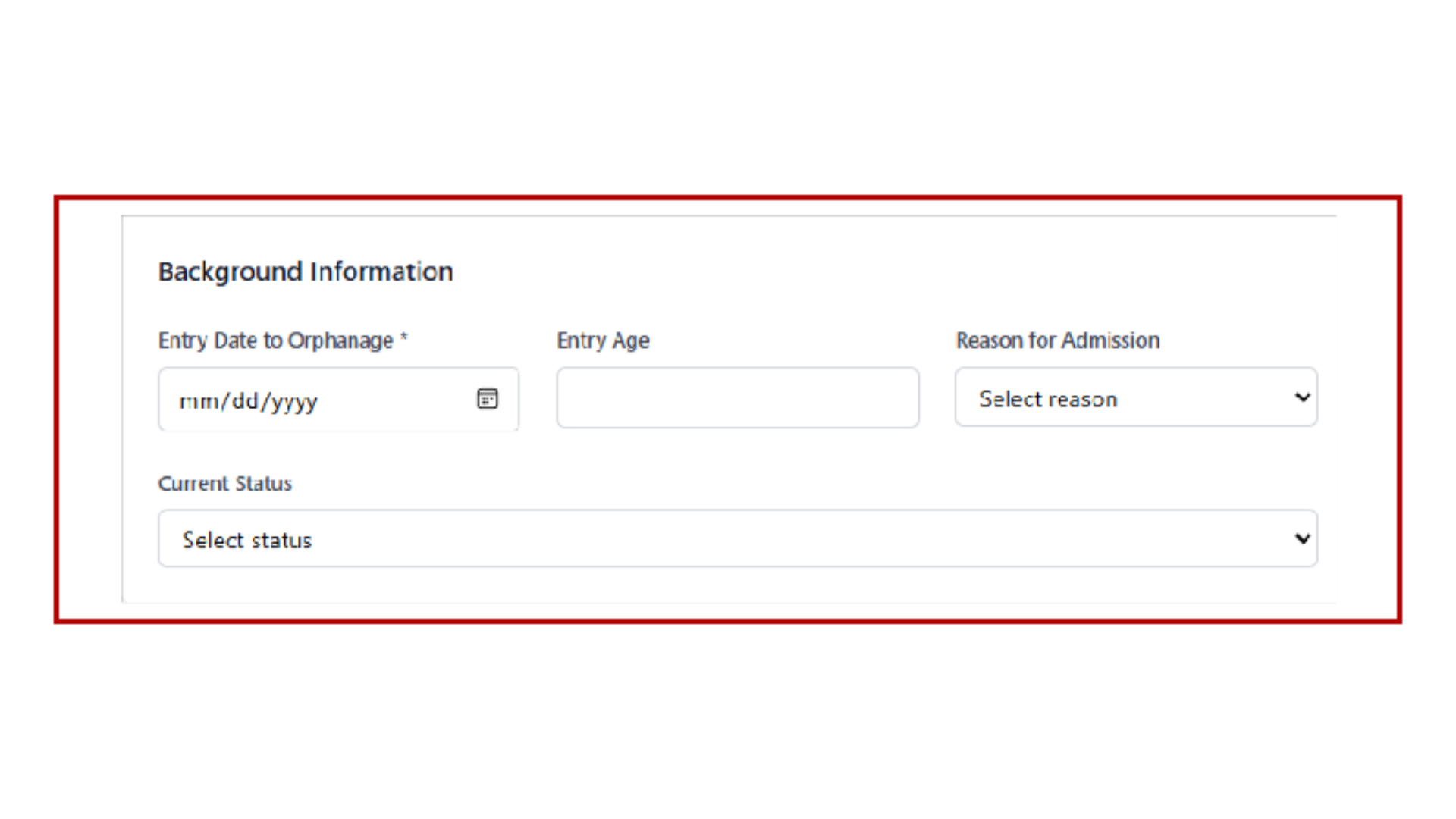
Provide details about the child's entry into the orphanage including entry date, entry age (automatically calculated), reason for admission, and current status. This information helps track the child's journey.
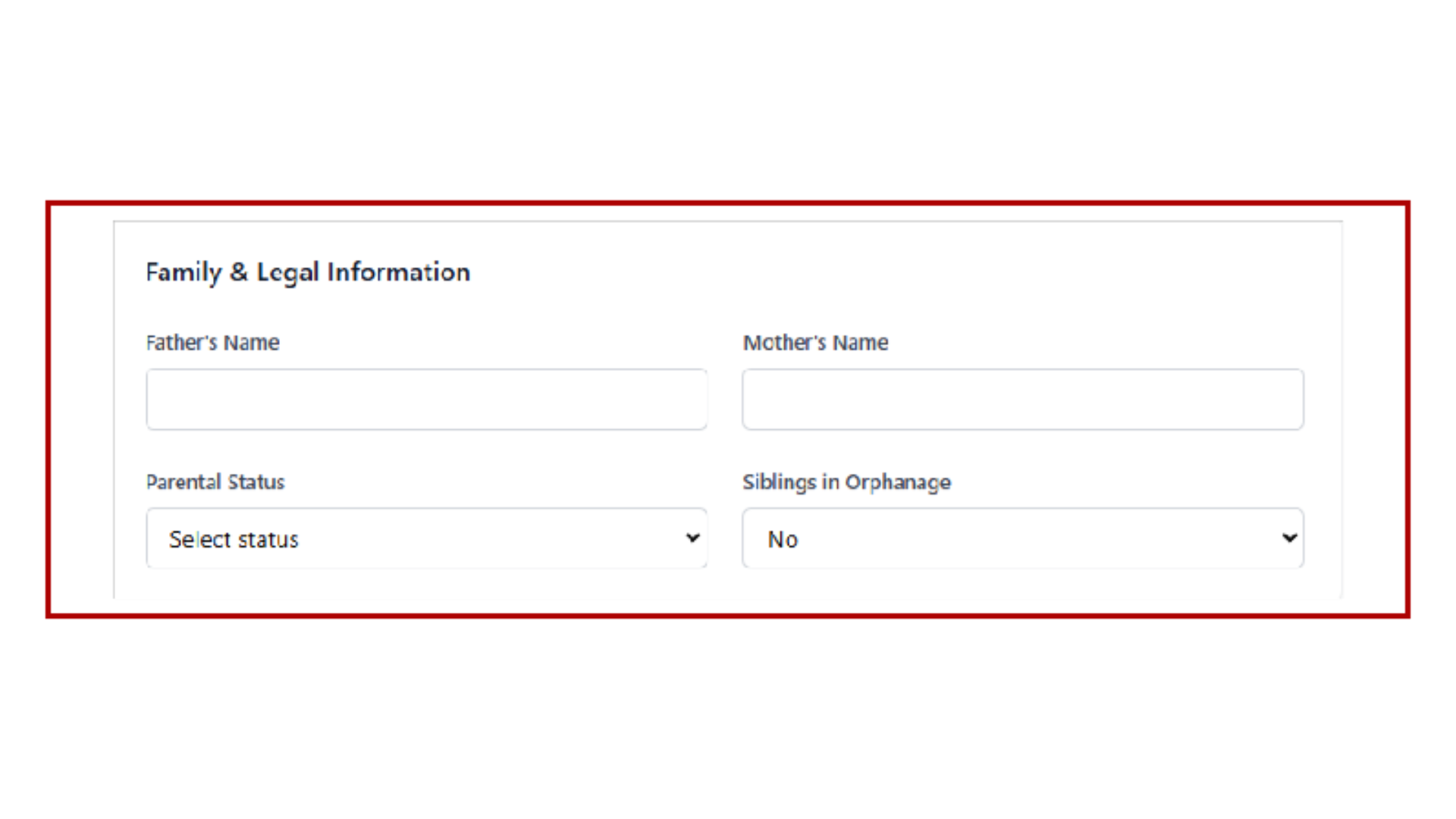
Record family details including father's and mother's names, parental status, and information about siblings in the orphanage. If the child is a foundling, some fields will be automatically disabled.
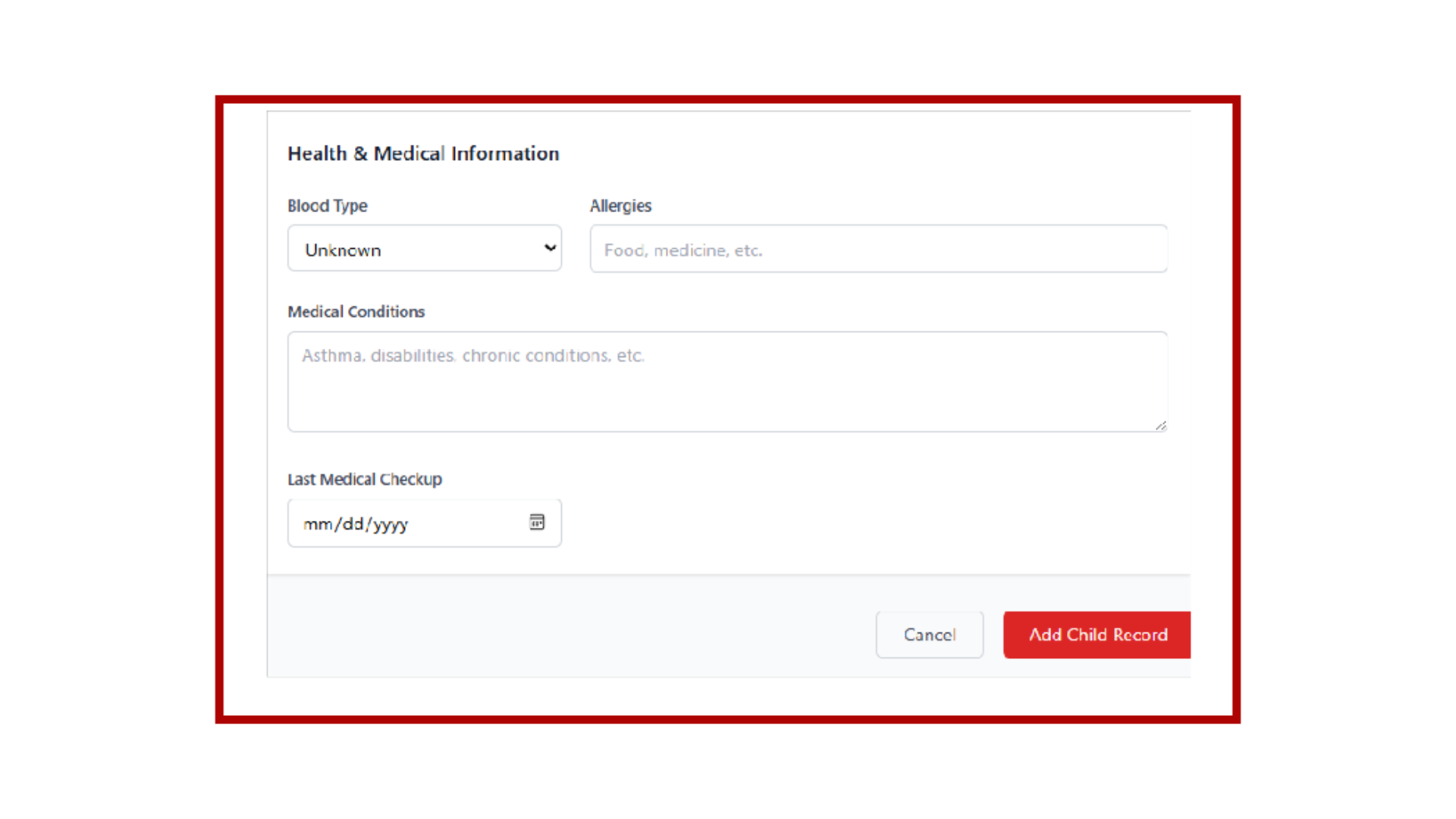
Enter important health details such as blood type, known allergies, medical conditions, and the date of the last medical checkup. This information is crucial for the child's healthcare management.
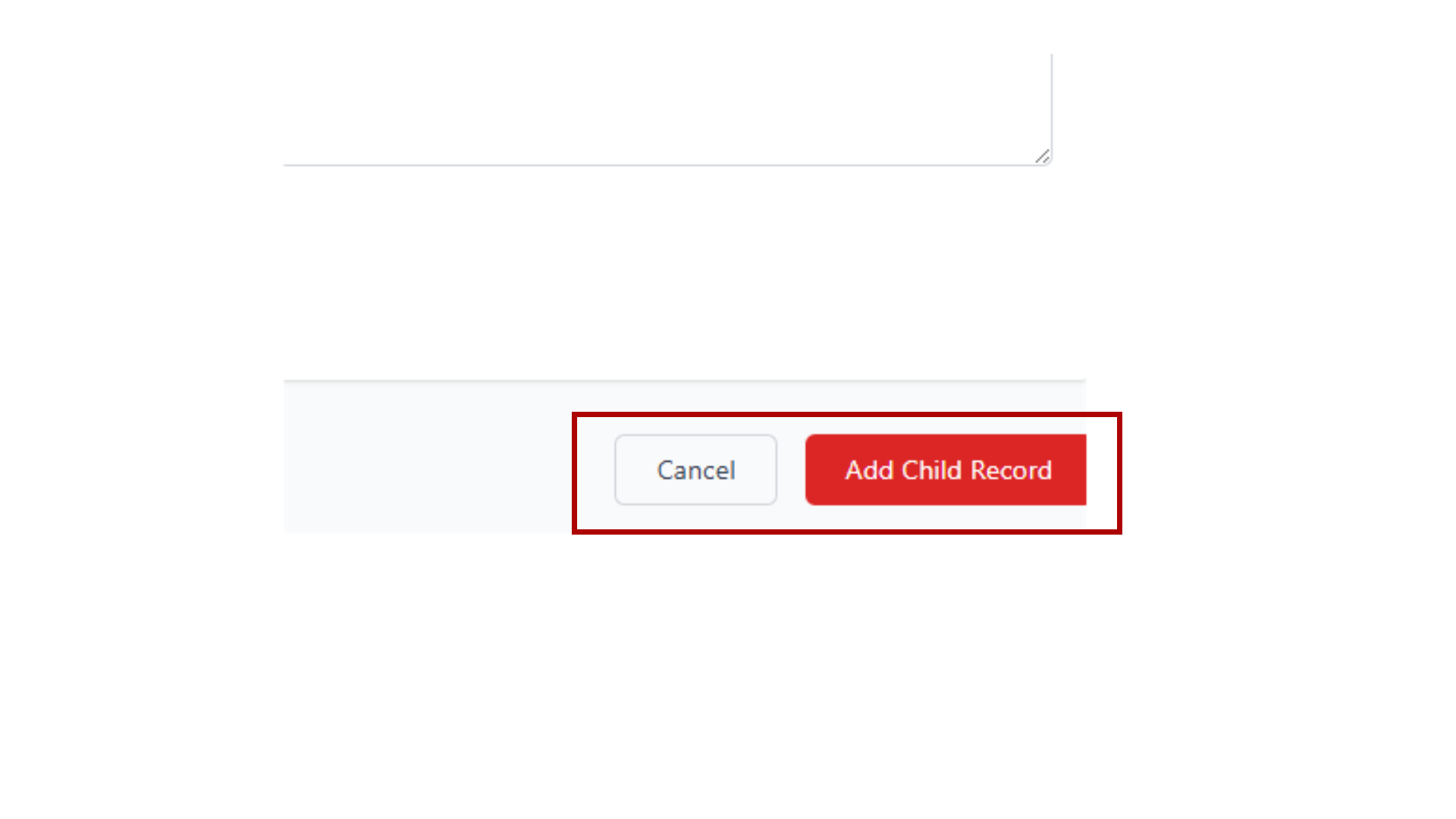
Once all required information is filled, click the "Add Child" button to submit the form. You can also preview the information before final submission or save it offline if needed.
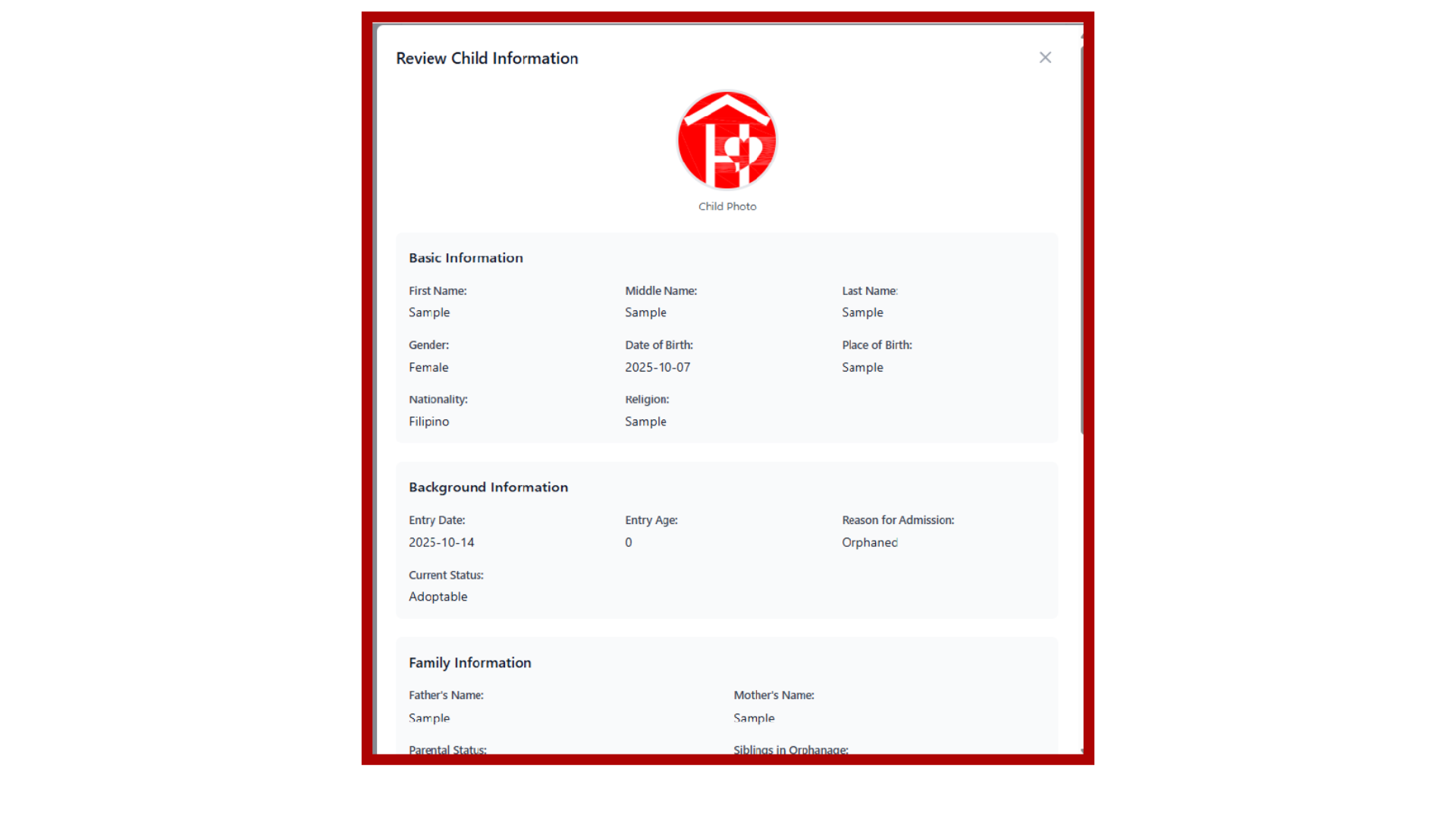
Before saving, review all the entered information in the preview modal. You can edit any details if needed or confirm to save the child record to the database.
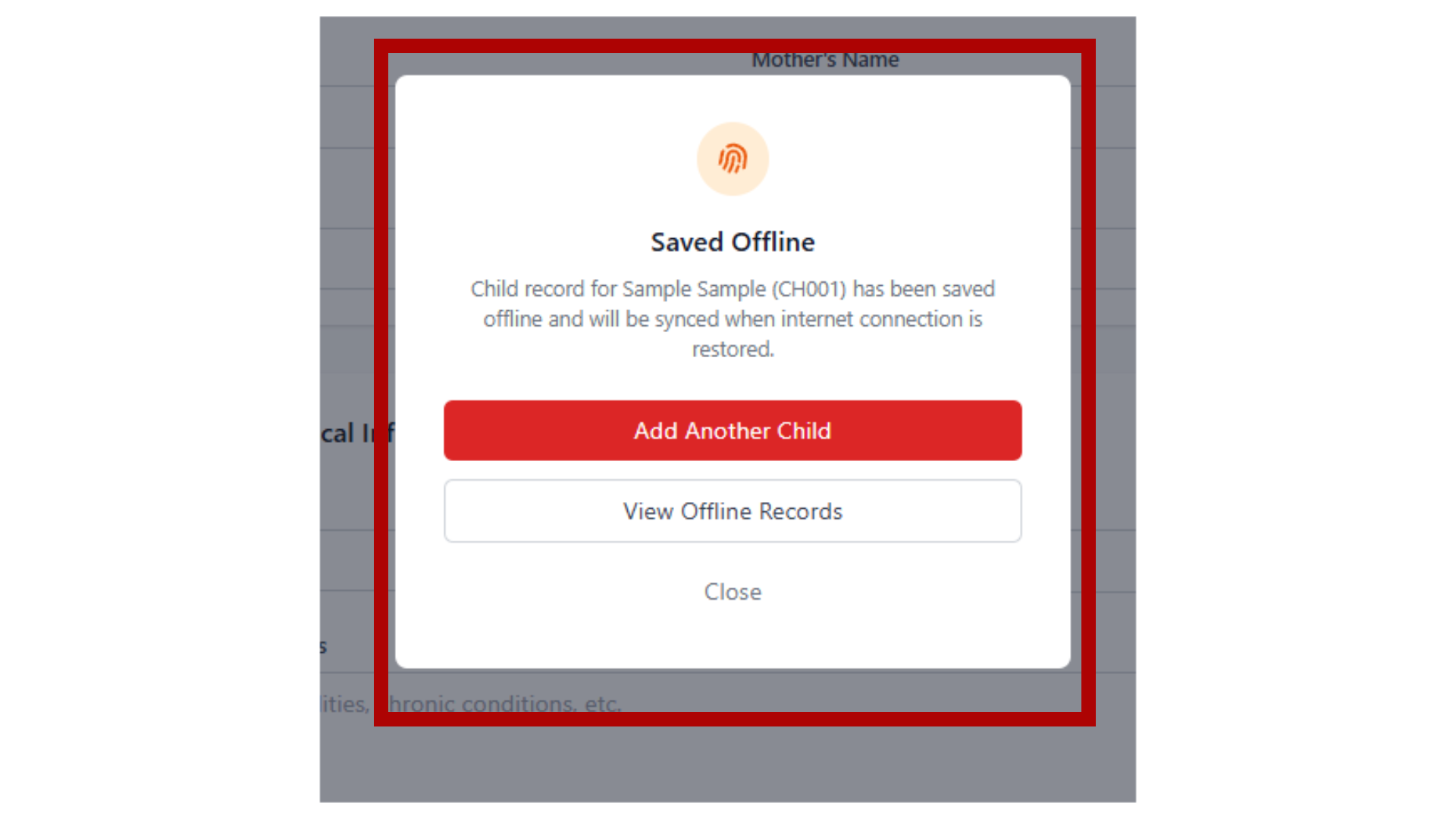
When there's no internet connection or an error occurs, the system automatically saves the record offline. This ensures no data is lost and will be synchronized once the connection is restored.
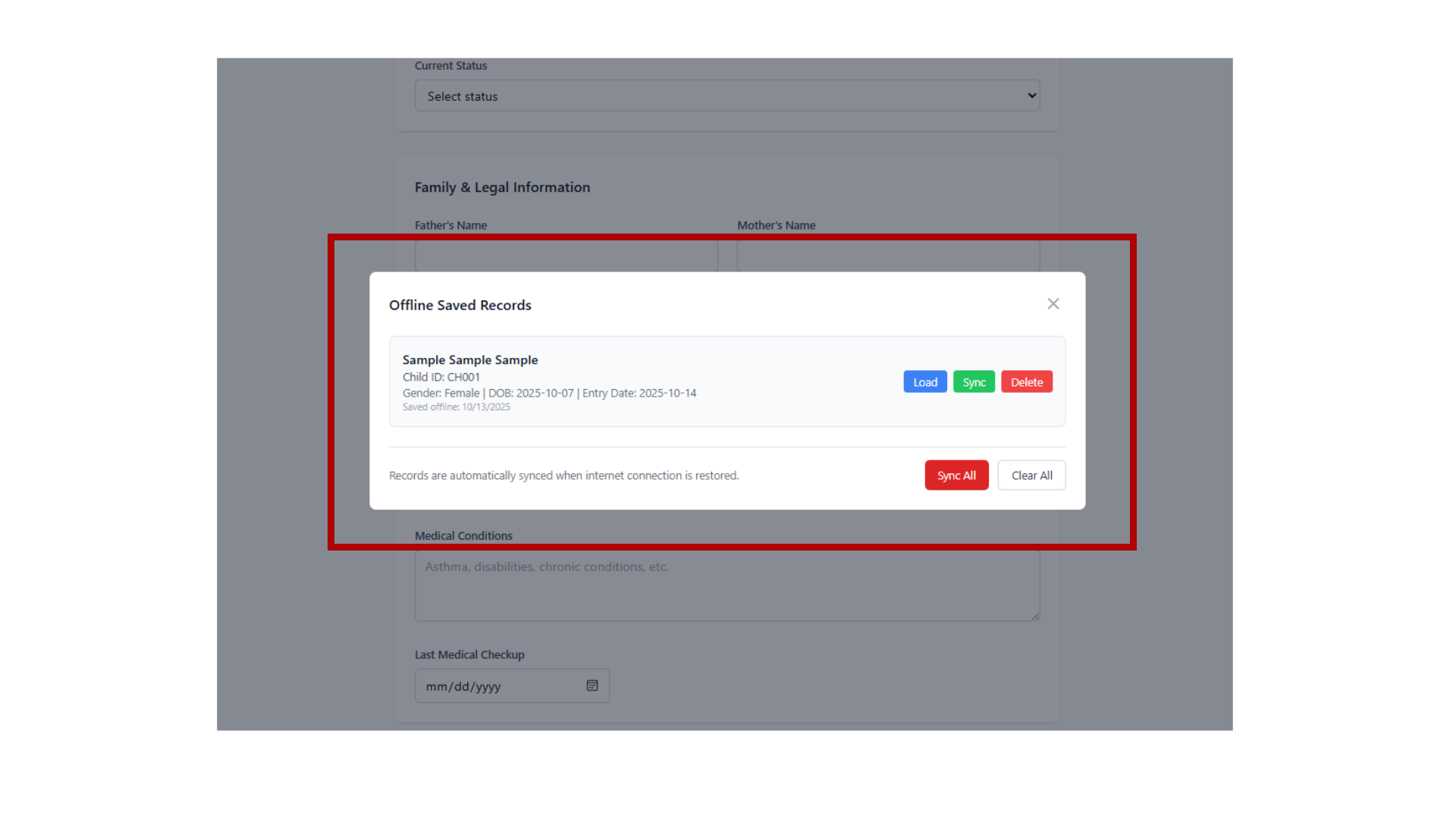
The floating button in the bottom-right corner shows when there are offline records saved. Click it to view and manage all records that are waiting to be synchronized with the database.
In the offline records modal, you can load saved records to fill the form fields, manually sync individual records to the database, or remove records you no longer need. Use "Sync All" to upload all offline records at once.
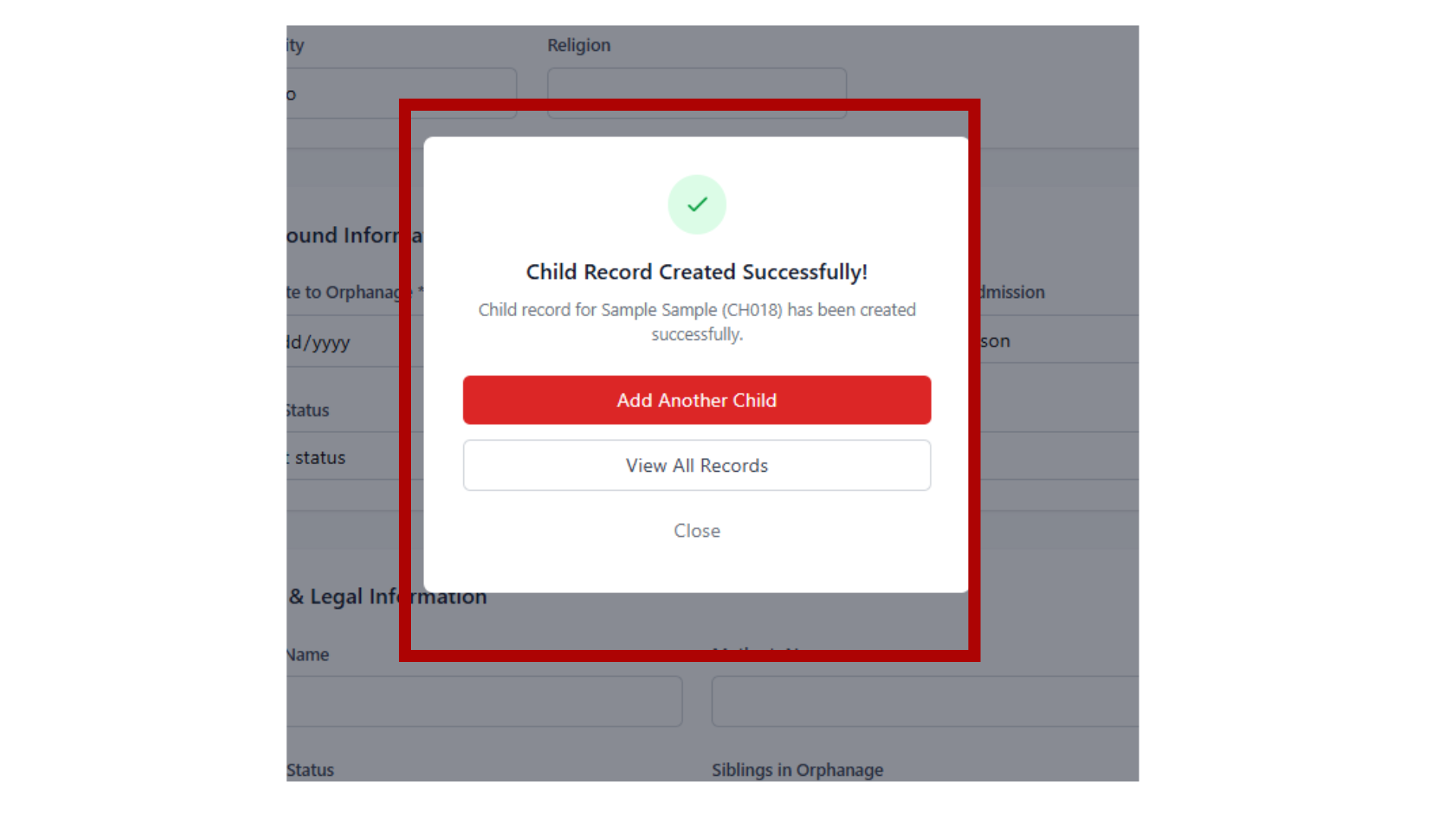
After successfully saving a child record, you'll see a confirmation message. You can choose to add another child, view all records, or close the modal. The system will generate a unique child ID automatically.
Initializing camera...
Child Photo